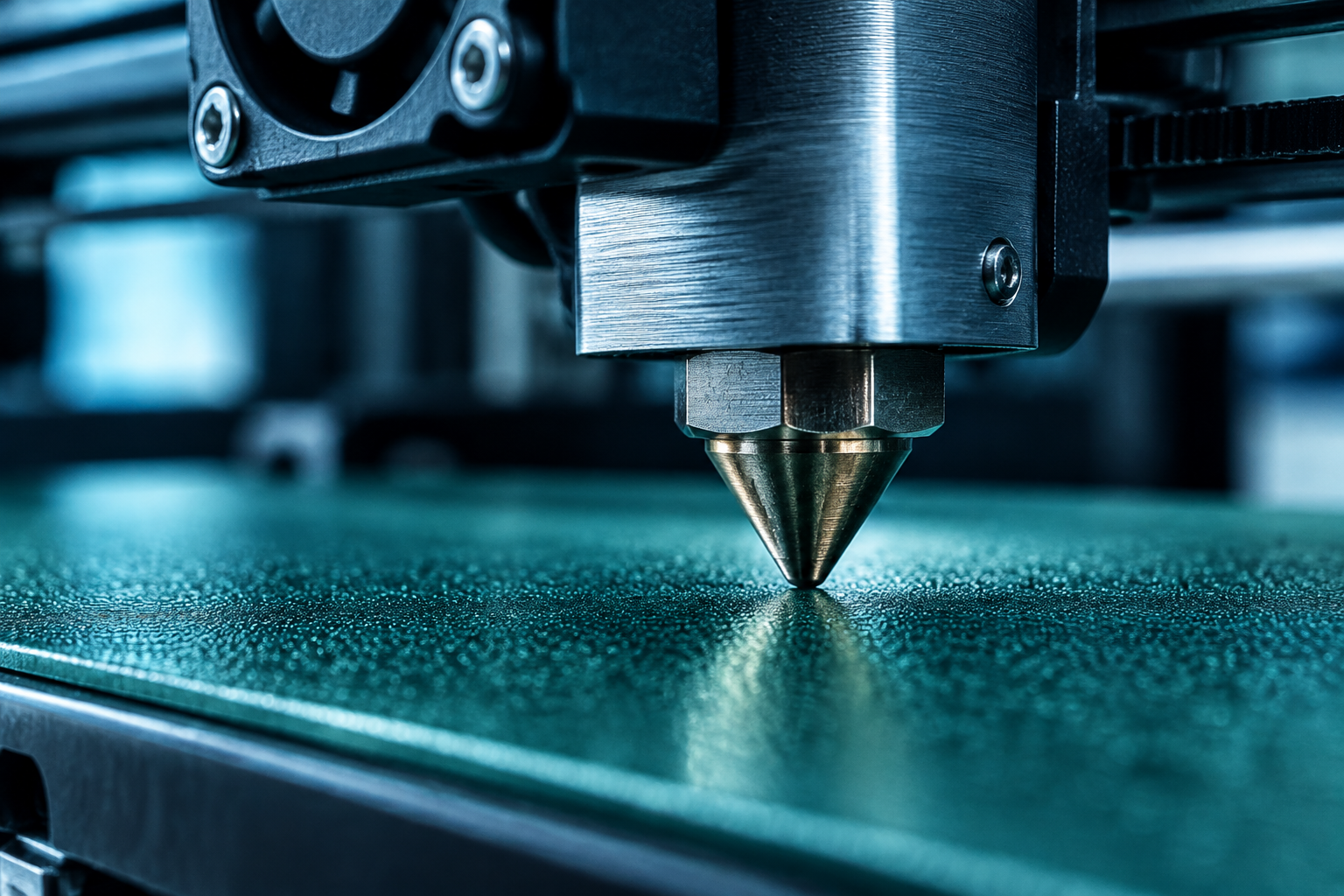
3D Print Build Plate:
Choose the Right Surface
The right 3D print build plate determines whether your first layer sticks reliably, releases cleanly after cooling, and holds up across hundreds of prints. Learn how to choose the perfect surface and master the settings in OrcaSlicer.
Quick Recommendation Guide
Hardware selection is the foundation of a successful print. Use this quick reference to match your material needs to the right surface.
| Your situation | Recommended plate |
|---|---|
| Printing PLA, PETG, or TPU — want easy removal | Textured PEI spring steel |
| Printing PLA or PETG — want a smooth bottom surface | Smooth PEI spring steel |
| Printing ABS or ASA with an enclosure | Smooth PEI or glass |
| High-temp materials (PA, PC) | Smooth PEI or high-temp variants |
Build Plate Types Compared
Each build plate surface behaves differently depending on material, temperature, and how you remove the finished print.
| Plate Type | Surface Texture | Best Filaments | Adhesion Behavior | How to Release | Bed Temp Range |
|---|---|---|---|---|---|
| Textured PEI | Matte, rough | PLA, PETG, TPU | Strong grip hot; pops off cool | Flex the plate | ~55–85°C |
| Smooth PEI | Glossy, flat | PLA, PETG, ABS, ASA | Very strong; mirror finish | Flex/Spatula | ~55–95°C |
| Glass | Glossy, rigid | PLA, PETG | Moderate; needs aid | Cooling + Spatula | ~50–65°C |
| Spring steel | Varies | Coating dependent | Varies by coating | Flex the plate | Coating dependent |
Note: Temperature ranges are starting points. Verify with filament specs.
3D Print Bed Adhesion TipsConfiguring Your Build Plate in OrcaSlicer
Plate Type Presets
In OrcaSlicer, open Printer Settings and look for the Bed Type selector. Selecting the correct preset allows OrcaSlicer to apply recommended temperatures automatically.
Temperature Calibration
Adjust Bed temperature (first layer) in Filament Settings. Check the First layer nozzle temperature to improve initial flow and surface bonding.
Post-Swap Recheck
Always recalibrate Z offset after swapping. Increase first-layer line width to 110–120% and reduce speed to 20–30 mm/s to ensure bonding on new surfaces.
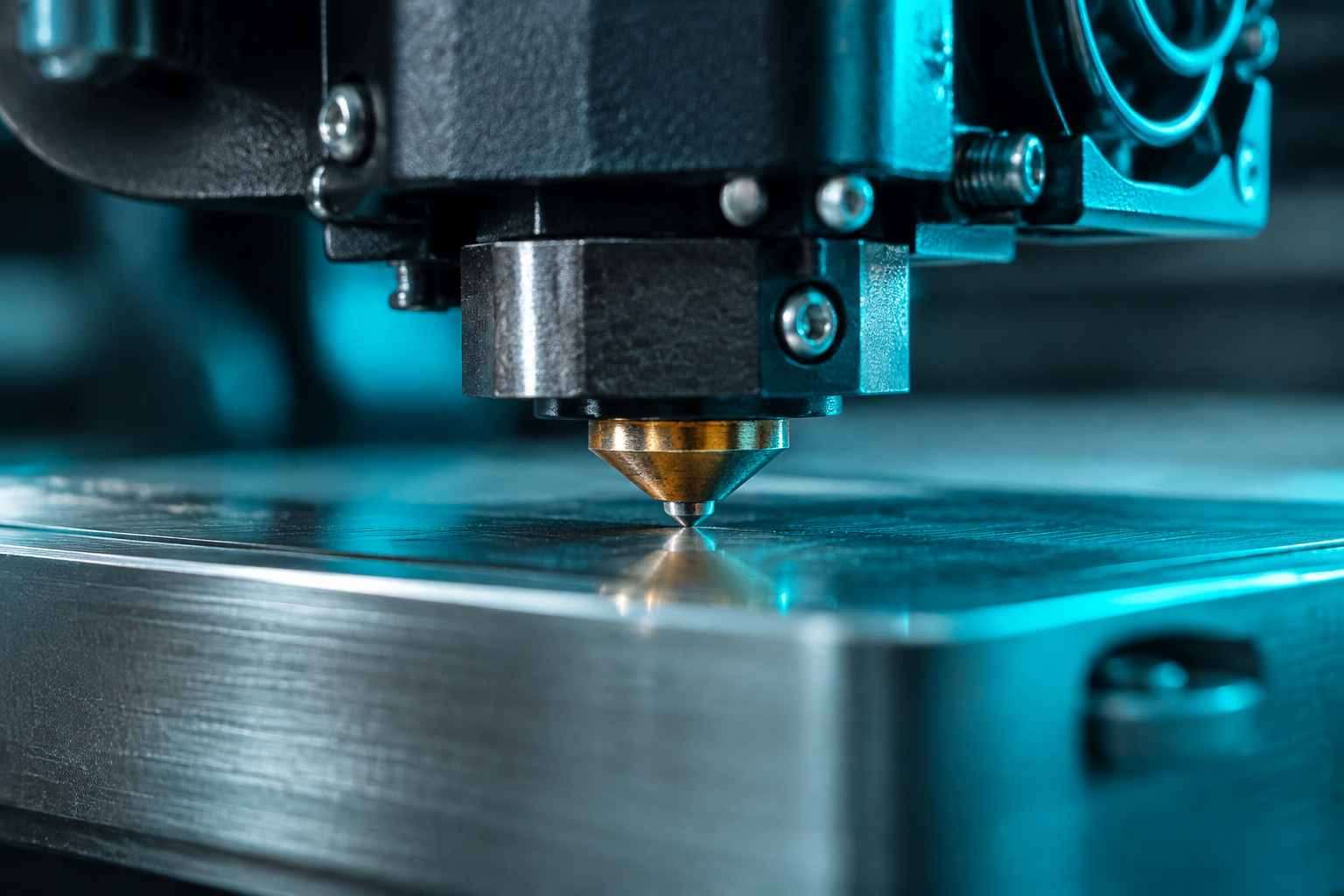
First Layer Adjustments After a Plate Swap
Re-run Z Offset Calibration
The new plate's thickness will differ. Run OrcaSlicer's live Z adjust or baby-step calibration. A precise Z offset prevents poor adhesion and nozzle dragging.
Reduce First-Layer Speed
Set to 20–30 mm/s for the first print. This gives filament time to flow into the plate texture and bond before cooling.
Check First-Layer Line Width
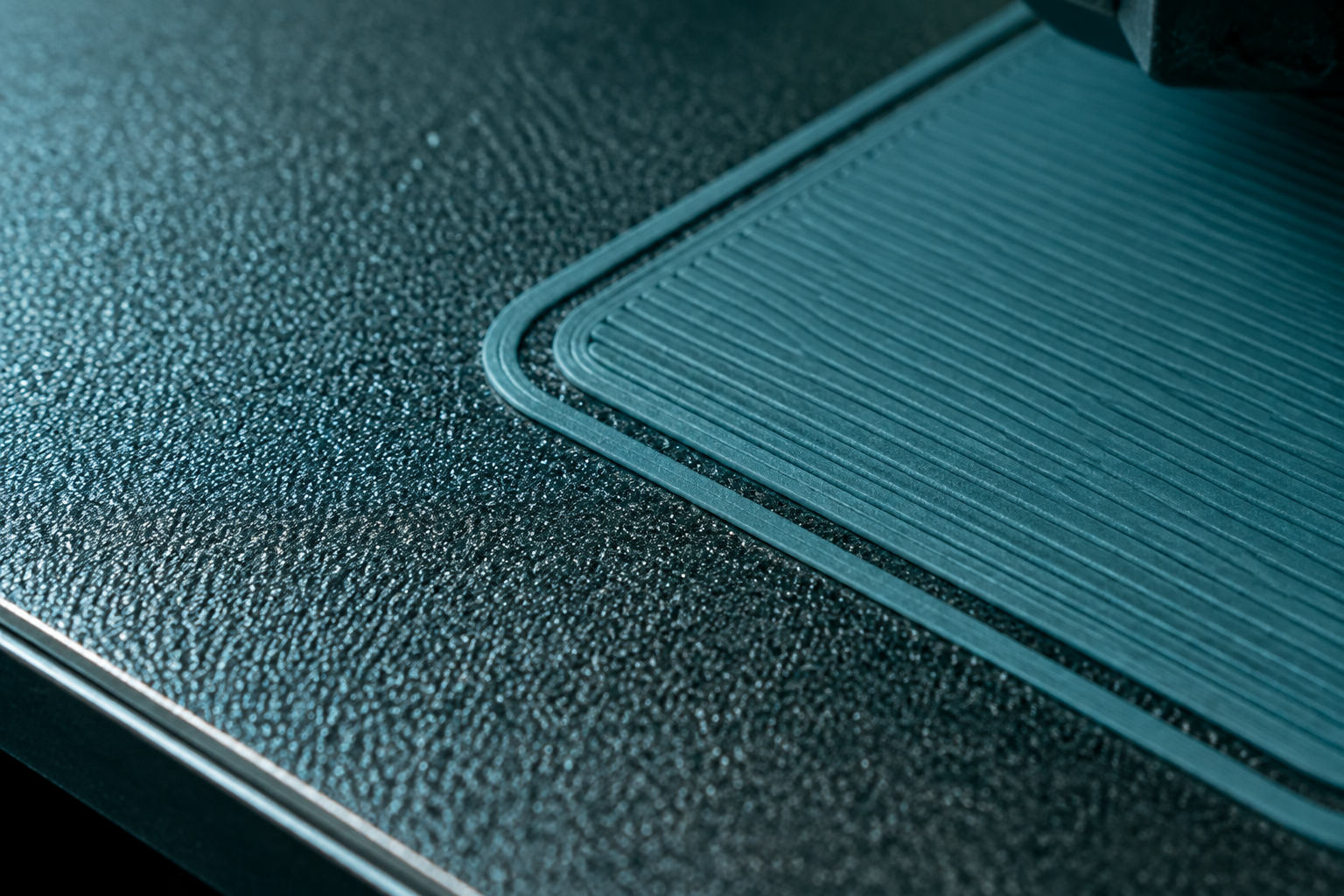
A width of 110–120% increases contact area. This is critical for textured PEI where filament needs to fill the surface pattern.
Adjust Elephant-Foot Compensation
If the first layer squishes too wide, increase the Elephant foot compensation in quality settings to correct dimensions.
Build Plate FAQ
My build plate is warping — what should I do?
A warped plate causes uneven adhesion. In OrcaSlicer, enable Bed Mesh Leveling (ABL) to compensate. If the warp is severe, replacing the plate is more reliable than software compensation.
How long does a PEI coating last?
PEI lasts hundreds of prints. If adhesion drops, clean with isopropyl alcohol (IPA). When cleaning fails, flip the plate (if double-sided) or replace the PEI sheet.
Can I use multiple plate types on the same printer?
Yes. Save each plate's Z offset as a separate printer preset in OrcaSlicer. Re-run Z offset calibration every time you swap to maintain accuracy.
What is the difference between a spring steel plate and a glass plate?
Spring steel flexes for easy removal and uses PEI for strong adhesion. Glass is rigid, often needs glue stick, and is heavier, which can affect speed on bed-slinger designs.
Do I need to change the bed temperature when I switch plate types?
Yes. Different materials have different thermal properties. Start with manufacturer recommendations and adjust in 5°C increments based on results.
Start Printing with the Right Plate Settings
OrcaSlicer includes built-in bed type presets, per-filament temperature profiles, and calibration tools — everything you need for a reliable first layer.
No ads · Free · Open-source