Where the authentic Orca Slicer GitHub download lives
The builds you can trust are the ones the Orca Slicer project publishes itself, on its own GitHub repository — everything else is a mirror or a lookalike.
Orca Slicer is an open-source slicer for 3D printers, and open source changes what "official" means in practice. There is no single corporate storefront. The project distributes its software through its own repository, where the maintainers publish a stable channel and a nightly channel, and its own documentation names a single official website, www.orcaslicer.com. That documentation also carries a blunt warning: several lookalike domains pretend to be the official site and may push dangerous downloads. Those two facts are the anchor for everything below. The repository and the website named by the project are the reference; any other page is unverified until it proves otherwise.
The 30-second answer: which file to grab
Match the asset to your operating system, then take the stable release unless you have a specific reason to test the newest code.
Key answers
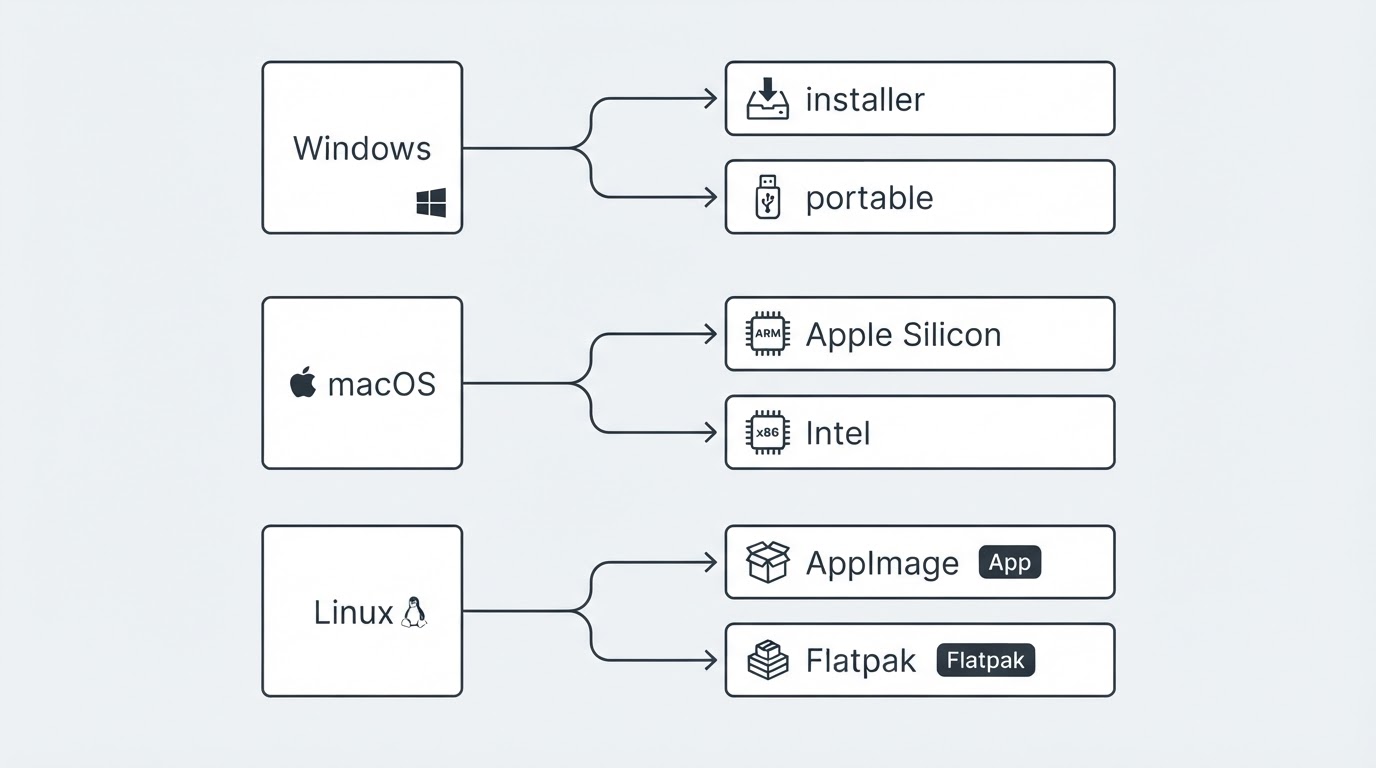
- Windows (64-bit): take the installer for a normal setup, or the portable build when you cannot or do not want to install anything. The project's listing includes x64 and arm64 installers plus a portable build.
- macOS: choose the Apple Silicon build for an M-series Mac and the Intel build for an older Mac.
- Linux: the AppImage runs without installing; the Flatpak is the package-managed route. The project documents a step-by-step Linux install walkthrough.
- Release channel: stable first; nightly only for testing.
- Belt and conveyor printers: the nightly also ships an experimental
_beltbuild for that hardware.
Stable or nightly: which Orca Slicer release channel you actually need
Choose stable for everyday printing; choose nightly only when you specifically need an unreleased fix or feature.
At the time this guide was written, the project's download listing carried Stable v2.4.2 (7 July 2026) and Previous v2.4.1 (28 June 2026) alongside a separate nightly channel. Those two stable entries are the real choice for most people: the current stable is the default install, and the previous stable is there if you need to step back.
Nightly builds are the newest code published — and the least tested. That trade-off is the whole decision. A nightly can give you a fix or a feature that has not reached a stable release yet; it can also break something you depend on. The listing also carries an experimental _belt build for belt and conveyor printers, tracked publicly as PR #14394 and not yet merged into the main branch. If that is your hardware, it is the build that targets it. If it is not, it is unnecessary risk.
A practical habit from here: install stable, keep the previous stable installer on hand, and treat every nightly as something you are willing to replace with a stable reinstall.
Choosing the right file per platform
Pick by operating system first, then by CPU architecture, and only then by packaging preference.
Platform | Asset to look for | Pick it when |
|---|---|---|
Windows 64-bit | Installer (x64 or arm64) | You want a normal desktop install |
Windows 64-bit | Portable build | You cannot install software, or you want to test without committing |
macOS | Apple Silicon build | Your Mac has an M-series chip |
macOS | Intel build | Your Mac has an Intel processor |
Linux | AppImage | You want to run the slicer without installing it |
Linux | Flatpak | You want a package-managed install |
Two details complete the picture. On macOS, Gatekeeper can block the first launch of software that did not arrive through the App Store; the project's documentation describes the workaround as System Settings → Privacy & Security → Open Anyway. On Windows, the project's listing also includes a Microsoft Store entry, so the app can come from a store-managed surface as well as from a release asset.
If you are unsure which architecture your machine uses, check that before you download rather than after: the asset name is the only thing telling you which processor family the build was made for.
How to verify a download before you install it
Verify in this order: the page, then the release, then the asset.

- Check the page. You should be on the project's own repository, not on a page that merely links to a file.
- Check the release entry. Confirm the release belongs to the project and that its channel and version match what you meant to install — stable or nightly, current or previous.
- Check the asset. The file you are about to run should match your operating system and architecture, and it should sit in that same release entry.
- Check the anchor. The project's documentation names a single official website. If the page you are on is neither that website nor the project's repository, treat the file as unverified.
Your completion standard is simple: you can name the channel and the exact asset you installed, and you can point back to the same release entry as its source. If you cannot do both, you are guessing — and guessing is what the lookalike pages count on.
Counterfeit download sites: the pattern behind the warning
Lookalike download pages copy the project's name, not its accountability.
The project's own README warns that several clickbait and malicious websites pretend to be the official OrcaSlicer site and may redirect visitors to dangerous downloads. The pattern repeats across open-source projects, so it is worth learning once: a domain that is close to — but not — the official one; a download button that starts moving before you have read anything; sponsored placements that sit above the real result; a page with no author, no affiliation statement, and no path back to the project.
The defense is the verification order above. It is also why this article sends you to the project rather than hosting anything itself: the most reliable way to avoid a counterfeit is to take the file from the project's own release entry every time. If a page cannot tell you whose project it belongs to and who wrote it, it has already failed the check.
Follow-up questions, answered
Most download questions fall into three groups: verifying the source, choosing a build, and handling what happens after the file lands.
Verifying the source
Is the GitHub Releases page the official download source? Yes. The project publishes its own stable and nightly builds there, and it is the one channel the maintainers publish themselves.
Is a mirror ever acceptable? Not for the installer. A copy that did not come from the project gives you no way to know whether the file was modified, so treat every non-project page as unverified, even a polished one.
Choosing a build
Which version should I install, stable or nightly? Stable. Take the nightly only when you need a specific unreleased fix, and be ready to reinstall stable afterward.
Installer or portable on Windows? Installer for a normal machine. Portable when you cannot install software, or when you want the experiment contained to one folder.
AppImage or Flatpak on Linux? AppImage when you want to run the slicer without installing it; Flatpak when you want a package-managed install.
What is the _belt build? An experimental build for belt and conveyor printers that ships with the nightly channel. It was tracked publicly as PR #14394 and not yet merged into the main branch when this guide was written.
After the download
macOS blocked the first launch. What now? The project's documentation describes the workaround as System Settings → Privacy & Security → Open Anyway. The prompt is the operating system checking an app that did not come through the App Store.
Can I go back to stable? Yes. The previous stable entry was still listed at the time of writing, and keeping the stable installer you used makes the rollback a reinstall rather than a search.
FAQ
These are the remaining details that often decide whether a download ends well.
Does the Microsoft Store version count as authentic? The project's own download listing includes a Microsoft Store entry for Windows, so it is an additional surface the project points to. If you want the build the maintainers publish directly, take it from the GitHub release entry.
Why are there separate Apple Silicon and Intel builds? They target different Mac processors. Pick the one that matches your machine.
How do I know which release is current? The project's release page lists the entries with their versions and dates — Stable v2.4.2 (7 July 2026) and Previous v2.4.1 (28 June 2026) at the time of writing — with nightly builds listed separately.