What the floating region warning really tells you
Orca Slicer raises it after slicing. The slicer walks each layer's toolpaths looking for geometry that would be extruded with nothing beneath it, groups the reason as a floating region, floating cantilever, or large overhang, and asks you to re-orient the object or enable support generation. That is a printability judgement, not a mesh-integrity verdict: a closed, watertight model can still hold a wall that begins in mid-air. The warning names neither the layer nor the surface, so users routinely cannot find what it describes — a gap tracked in the OrcaSlicer issue tracker. Locate the layer first.
Locate the layer before changing anything
- Slice the plate, then switch to Preview.
- Set the colour scheme to Line Type so walls, bridges, infill, and support are distinguishable.
- Drag the layer slider down one layer at a time and orbit until you are looking along the underside.
- Stop where a line appears with no material beneath it — that is the candidate region.
- Note the layer and feature, then keep scrubbing; a model can hold more than one.
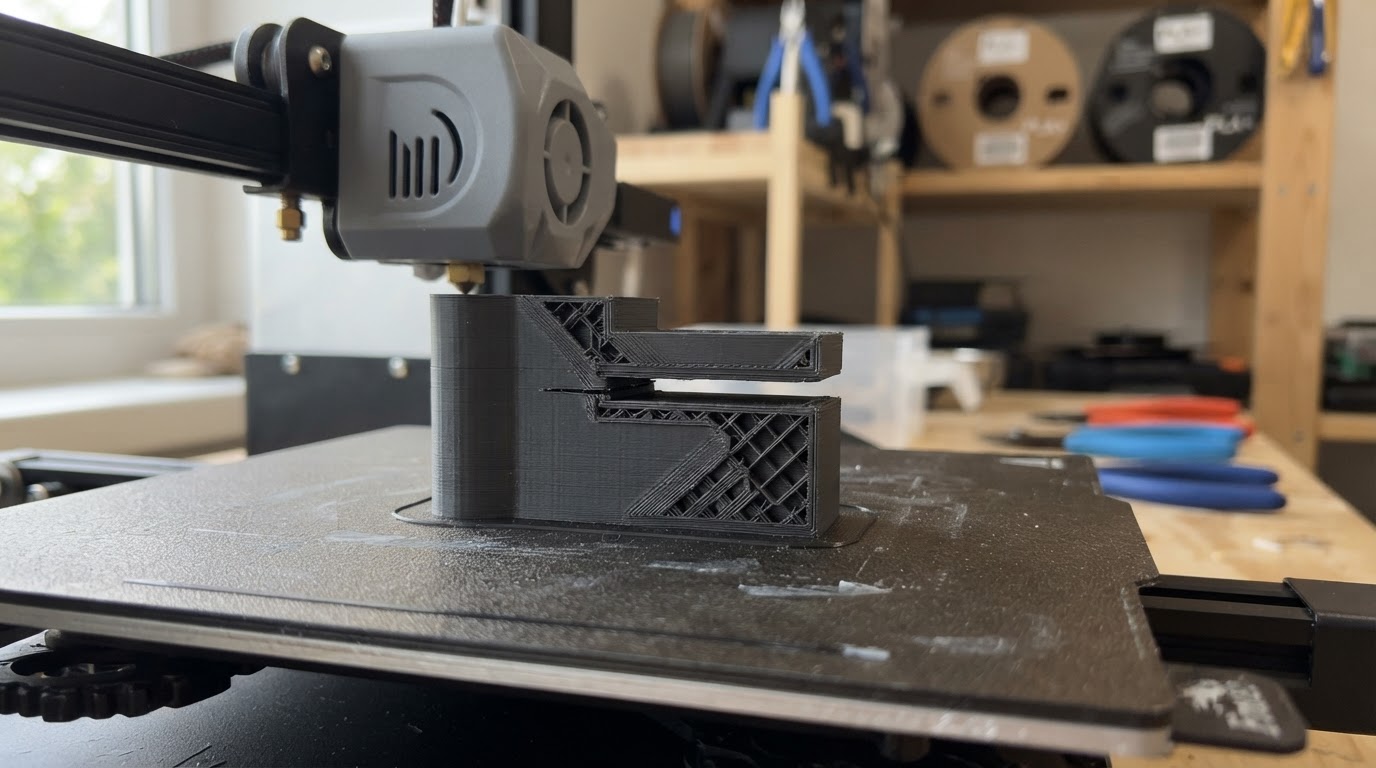
Usual hiding places: cantilever undersides, the far side of a curved wall, thin spikes and tails, and any shape that narrows to a point. Check each copy on the plate separately.
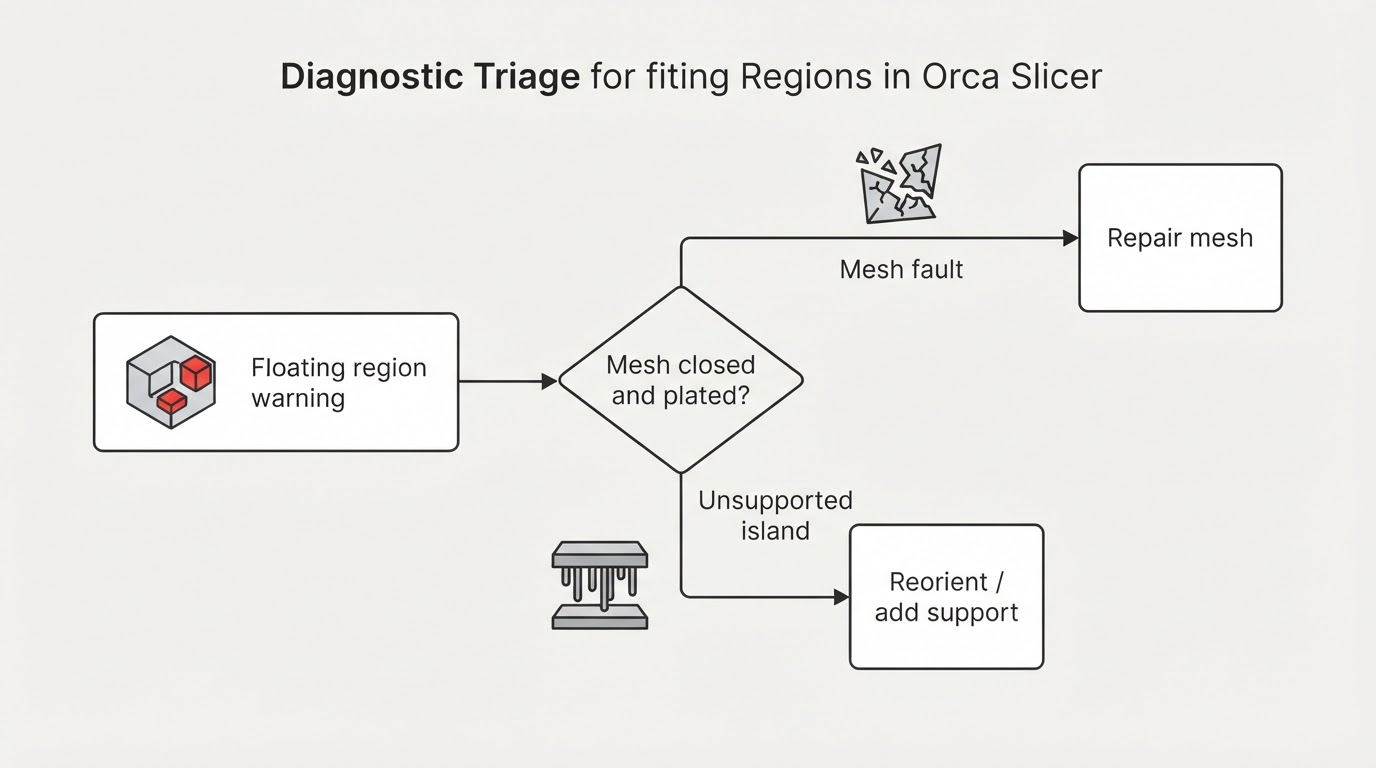
Unsupported island, non-manifold edge, or disconnected shell?
Three faults look like "this prints in the air" and need different fixes. Use this matrix before changing a setting.
What you see | What it is | First move |
|---|---|---|
Warning appears right after slicing; mesh imported cleanly; a wall starts in mid-air above supported layers | Unsupported island — valid geometry with no material beneath that path | Re-orient the part or switch on support generation for that overhang |
Slicer reports a mesh problem; faces do not form a clean closed surface; slice paths are missing or inconsistent | Non-manifold mesh — a topology fault, not a support decision | Repair the mesh in a dedicated mesh tool and re-import before changing print settings |
A shell or loose part never touches the plate, or floats above it as a separate object | Disconnected mesh — the "island" is a whole piece of the model | Drop it onto the plate, generate support from the build plate, or merge the shells |
Warning vanishes when you change a setting and change it back | Reported false positive in the slice pipeline | Re-slice and inspect the layer again; a missing warning is not proof the path is printable |
Non-manifold geometry is an edge-level defect, a disconnected shell is a missing connection between solids, and an unsupported island is a slicer-level printability finding on a mesh that may be sound. If the mesh is closed and plated, stop looking for a file problem.
The fixes, from least to most invasive
1. Reorient the part
Rotating a model changes which unsupported span the slicer has to bridge. Turn the offending overhang towards the plate, or lay a face flat so the island lands on supported material.
2. Turn on support generation
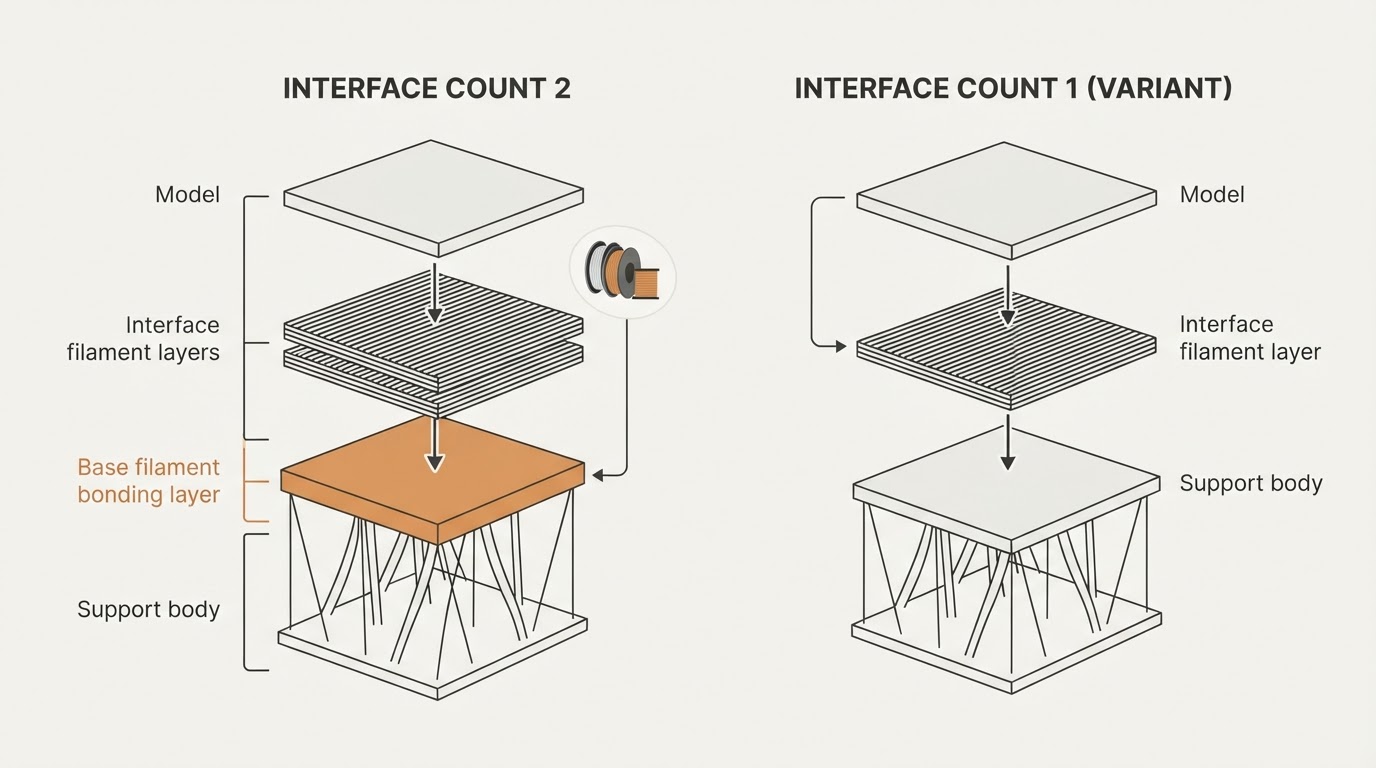
Support settings give four types — normal and tree, each in auto or manual mode. Support type and Threshold angle are Simple-mode settings: support is generated for overhangs whose slope angle is below the threshold, so a higher threshold generally includes more overhangs. On build plate only keeps support off the model surface, and Ignore small overhangs drops overhangs that likely need nothing. For one localized island, manual support painting usually beats supporting the whole part. For a related support problem, see supports that are too hard to remove.
3. Use slicer-side overhang help, knowing what it changes
The Quality > Overhangs page groups the geometry- and speed-level responses:
- Detect overhang wall (Advanced) measures the overhang percentage relative to line width and prints those sections differently; at 100 percent overhang the bridge settings take over.
- Extra perimeters on overhangs adds perimeter paths over steep overhangs and where bridges cannot be anchored.
- Make overhang printable rewrites the geometry: every overhang steeper than the maximum angle gains conical material beneath it. 90 degrees leaves the model untouched, 0 degrees replaces every overhang, and 45 to 60 degrees is the usual starting range. It changes the shape, so keep it for functional parts.
- Print unsupported walls last is version-gated: the wiki lists it for nightly builds or releases newer than 2.4.2, hidden unless Detect overhang wall is enabled. It changes extrusion order; it does not create support.
- Reverse on even is documented as also helping reduce warping on floating regions over supports.
4. Repair the mesh only when the matrix points there
If the fault is non-manifold, repair the file, re-import it, and slice again. A disconnected shell may be printable with deliberate support, but first decide whether it was intended to be a separate part.
Confirm the fix before you print
Re-slice and watch the area. You are done when the warning is gone or you accepted the supported path, scrubbing shows material under the former island at every layer, and support touches the part only where you intended. Print a small test or the first few millimetres first.
Where this method stops working
- No universal one-click repair: the four causes need four different responses the warning text does not distinguish.
- Supporting an island trades surface quality, time, and material; removing support can scar the protected face.
- Make overhang printable changes the sliced output geometry and is unsuitable when printed dimensions matter; it does not modify the original model file.
- Tiny islands and thin walls can be dropped by line-width limits, and false positives occur.
FAQ
Is a floating region the same as a non-manifold mesh?
No. Non-manifold geometry is a topology defect, where edges do not form a clean closed surface, while a floating region is a slicing verdict that a path has nothing beneath it. A valid mesh can produce a floating region, and a non-manifold mesh can slice without triggering one.
Does Orca Slicer tell you which layer has the floating region?
Not in the warning itself. The request to highlight or jump to the layer is open in the issue tracker, which is why scrubbing the layer slider is the practical method.
Can I ignore the warning?
Only after you have looked at the layer. A path that genuinely starts in mid-air fails or droops at that height. If you have scrubbed the model and found nothing unsupported, re-slice and treat it as a false positive — but keep the visual check.