What the Device tab is really doing
The Device tab is an embedded view of your printer's own web interface, and it loads a URL taken from the printer you configured. In Orca Slicer's code, selecting the tab runs a printer-URL load; when the selected preset has no host, it falls back to the selected discovered machine. Upstream even has a change titled "Restore the web Device tab URL load on tab selection" (upstream commit 02736fe), which proves this load can fail while nothing else in the application is broken.
That mechanism explains most reports. The pane can be empty, white or stuck on a spinner while slicing and sending prints still work, because sending G-code and displaying the host interface are separate paths.
Collect four facts before you touch a setting

- Orca Slicer version and your operating system.
- Printer model and how it is connected: host type, IP address, and whether it needs a vendor account.
- The Device UI address configured for that printer, plus the printer's current IP.
- The exact error text in the tab and a debug log.
The upstream report follows the same pattern: Orca Slicer 2.1.1 on Windows 10, an Ender 3 VE KE, a printer that took a new IP while the tab kept the old one, and an attached debug log (issue #6170).
Name your family before changing a setting; if you cannot, add the log instead.
The four families, and what each one needs
Most blank or refused Device tabs belong to one of four families. Pick the row that matches your evidence before you edit anything.
What you see | Family | First check | What the result means |
|---|---|---|---|
Blank pane, endless spinner or 404 while prints still send | Local connection (host and URL) | Open the configured Device UI URL in a browser on the same computer | Browser shows the interface: the embedded view is the problem. Browser fails too: fix the address first |
"ERR_CONNECTION_TIMED_OUT", or an address from an old printer setup | Network discovery and caching | Compare the error address with the printer's current IP, then rebuild the printer entry | The tab stops dialing an address nothing answers; exactly the stale-address loop in the 2.1.1 report (issue #6170) |
The tab stays empty after a login, password or access-code change | Vendor-account login | Re-authorize the host type; a successful authorization refills the API and Device UI fields before you press OK | The vendor interface loads again; the Obico walkthrough shows the login, authorize, field refill and printer-selection sequence (Obico's Device tab guide) |
Correct address and a working login, but still nothing to embed | Unsupported printer workflow | Check whether your printer exposes a web interface and a supported host type | There is no fix inside the tab; use the printer's own screen, storage or vendor app |
The tab works with particular network host types, which vary by OrcaSlicer build and printer. The Device tab guide gives examples such as PrusaLink, Klipper and OctoPrint. If your machine exposes no compatible host interface, a blank tab may be a compatibility limitation rather than a repairable network fault.
Safe checks, in order
- Read the address before rewriting it. Click the Wi-Fi icon beside the printer name to open the network settings, and note the Host Type, IP and Device UI address — the field that decides what the tab embeds (Obico's Device tab guide).
- Reopen that same URL in a browser. If the browser renders the printer interface, Orca Slicer is only relaying the printer's answer; if the browser fails too, the fault is on the printer or network side.
- Break the stale-address loop. When the error names a different IP than the printer has now, record the current printer settings first, then update or re-add the entry with the current address if your version supports it.
- Refresh, then restart. Right-click inside the stuck pane and choose Refresh; if it stays empty, restart Orca Slicer and open the tab once more.
- Test one newer build. The report above was filed on 2.1.1, and upstream later restored the web Device tab URL load on tab selection (upstream commit 02736fe). On a 2.1.x-era build, testing the current stable release is the cheapest reversible way to rule this out.
- Stop when there is nothing to embed. If no host type matches your printer and no web interface exists, use the printer's own screen, storage or vendor app.
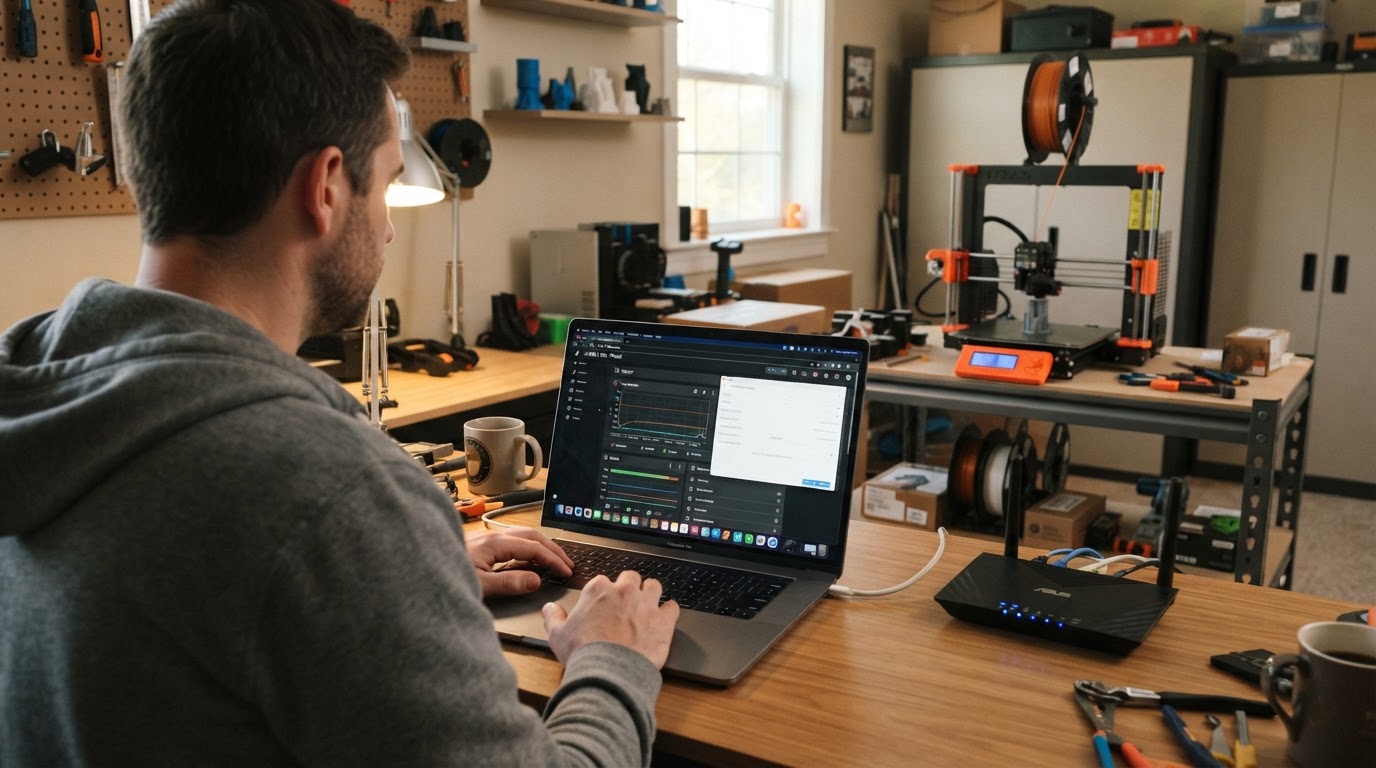
Do not disable your firewall, antivirus or other security protections broadly to make the tab load. If the address works in a normal browser but not in OrcaSlicer, gather a debug log and check the upstream issue tracker before changing security settings.
If you need a version update, use the separate official-download guide to avoid impersonator download pages.
You are finished when the URL that failed inside Orca Slicer opens in a browser and the Device tab renders that page, or when you can show that your printer has no embeddable host interface.
Limitations worth knowing
- The Device tab is not universal: it embeds a configured host interface, so a printer that exposes no web UI has nothing to show.
- Labels, ports and host types vary by build, OS and printer firmware. A port number from any guide is a hint, not a guarantee.
- The tab and printing are separate paths, so working prints do not prove the embedded page is fine.
- Change one variable at a time; bugs exist on both sides of the connection.
FAQ
Why does the Device tab show my printer's old IP address?
The address is stored with the printer entry and can survive a network change. When the printer takes a new address, the tab keeps dialing the old one and times out until the entry is rebuilt; the 2.1.1 report describes that stale address and the lack of an obvious place to clear it (issue #6170). Re-add the printer with its current IP first.
Printing works, so why is the Device tab blank?
Sending a print and rendering the host interface are different code paths; the tab loads a URL when it is selected (upstream commit 02736fe), and that load can fail alone. Test the Device UI URL in a browser and compare it with the tab.
Does every printer get a Device tab?
No. The tab embeds a supported network host interface, so a printer with no web UI or no matching host type has no page to load. The printer's own controls are then the honest answer.