Omitting a model and canceling one are different jobs
When you delete a model before slicing, or mark it non-printable in the object settings for your version of Orca Slicer, its toolpaths are not exported at all. The resulting file has nothing for that object, so it needs no object-exclusion support, no EXCLUDE_OBJECT commands, and no firmware menu. That is plain slicing, not object exclusion.
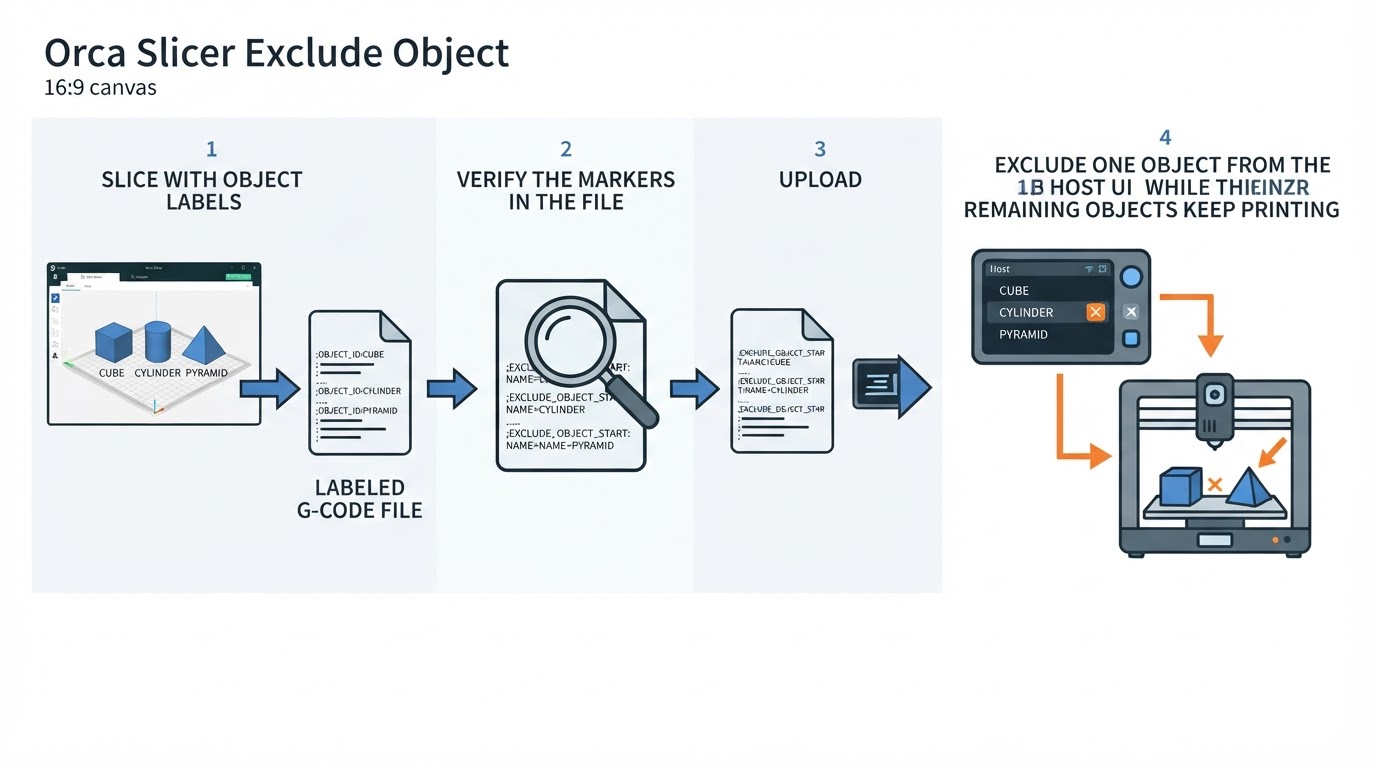
The Process Exclude Objects output setting does something else. It writes object labels and exclusion markers into the G-code so a compatible host can cancel one failed object during a live print, and the setting lives under G-code output in the active profile (G-code output wiki). It is preparation for live exclusion, not the same thing as leaving a model out of the slice, and a file that already omitted an object has nothing to exclude.
Canceling one failed object while the rest of the plate keeps printing is firmware and host work. Klipper's [exclude_object] module builds a list of the objects defined in the file, follows which one is currently printing, and skips the remaining toolpath of any object you exclude; the host sends EXCLUDE_OBJECT NAME=<name> when you pick that object in its interface (Klipper exclude object). Without that support, no slicer setting can make the printer skip an object mid-print.
That handoff is why Orca Slicer alone cannot make unsupported firmware skip objects: if the firmware does not implement the exclusion contract, no slicer toggle creates it. Vendor machines and generic Marlin boards are not all equivalent, so check your printer's own firmware documentation instead of assuming the menu exists.
Omitting a model versus canceling one during a print
Question | Omit a model before slicing | Cancel one object during a print |
|---|---|---|
When you decide | In the slicer, before export | While the job runs |
What changes in the file | The object's toolpaths are not exported | The file carries object labels and exclusion markers |
Object-cancel firmware required | No | Yes — compatible firmware and host support |
Process Exclude Objects setting | Not needed | Prepares the labels and commands the host uses |
Re-slice needed | Yes, to produce a file without the object | No |
Typical use | You already know a part should not print | A part fails and the rest of the job is worth finishing |
Choose omission when you already know a part should not print; choose live exclusion only when your firmware and host support it and a part fails mid-print.
The Klipper setup order that avoids surprises
- Back up
printer.cfgwhile the printer is idle. Never change or restart configuration during a print. - Check whether
[exclude_object]already exists inprinter.cfgor in a file it pulls in through[include ...]. If it is present, leave it alone; a duplicate section is a configuration error. - If it is absent, add it once, following the official Klipper documentation, only after the backup and only while the printer is idle. Apply or restart the configuration while idle too; never during a print.
- In Orca Slicer, open the exact printer and process profile you will slice with and make sure its G-code flavor matches your firmware, because the available Label Objects and Exclude Objects controls follow that profile and flavor. Label Objects ties moves to the object they belong to; Exclude Objects adds the marker or command for parts flagged as excluded. One documented caveat: labels can be omitted when Single-Extruder Multi-Material or the wipe-into-object and wipe-into-infill strategies are active.
- Re-slice. Labels are written at export time, so an older file stays unlabelled no matter what you change now.
- Inspect the actual file: search it for
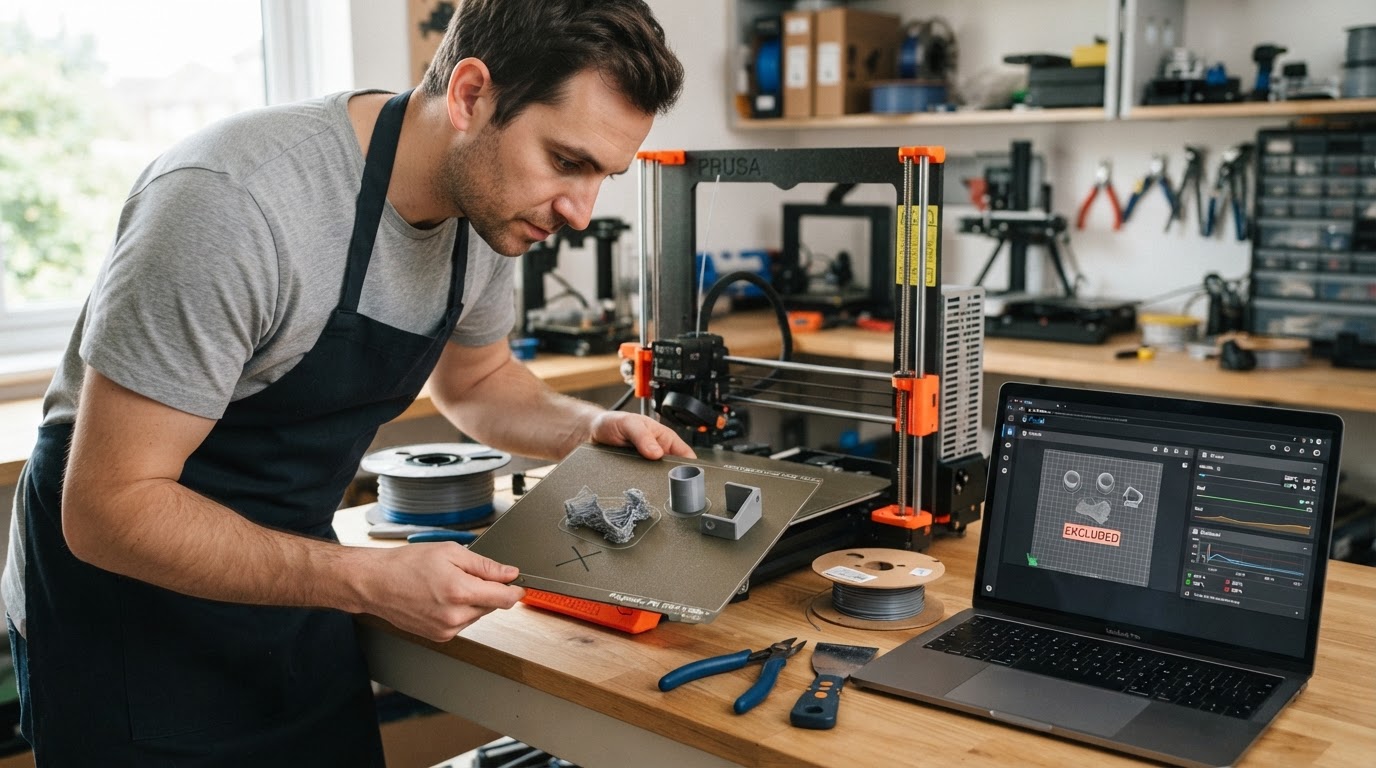
EXCLUDE_OBJECT_DEFINE,EXCLUDE_OBJECT_START, andEXCLUDE_OBJECT_END. The define block gives Klipper each object's name, with optional center and polygon metadata for the host display, before the print starts. If the markers are missing, fix the profile and re-slice instead of looking for a printer-side workaround. - Upload through Mainsail and run a small two-object test on a job you can afford to lose. With the module active, the host shows its exclude-object controls for that file — a dashed-square button in the status panel and a dialog listing the objects you can exclude (Mainsail exclude objects).
Native markers and the documented host preprocessor are separate paths. For files from slicers without native labelling, Moonraker can preprocess uploads with enable_object_processing: True under [file_manager] — file I/O work Mainsail does not recommend on low-resource boards. Enable that preprocessing only for files that lack the markers; there is no reason to duplicate processing on G-code that already contains them.
Version floors, as documented: Mainsail lists Klipper v0.10.0-438, Moonraker v0.7.1-445, and Mainsail v2.1.0 as the minimums, and warns that older, unprocessed files will not work. Treat those as the documented floor for the feature, not as a recommendation to install an obsolete version.
When the object list or the labels do not show up
Symptom | What to check first |
|---|---|
No objects listed in the host | The file has no |
Labels missing from the G-code | Labelling was off in the profile at export, the profile's G-code flavor does not match your firmware, or a multimaterial or wipe strategy suppressed labels. |
Two parts behave as one object | Grouped parts share one identity, so they cannot be excluded separately. Split them if independent cancellation matters. |
Nothing responds to exclusion | Wrong firmware flavor or version, or the module is not active. The feature must exist in the firmware; other firmware needs its own support. |
The feature worked yesterday | Stale file. Only G-code prepared with exclusion markers is eligible; re-slice and re-upload. |
Cancel the object, or stop the whole job
Excluding an object skips its remaining toolpath; it does not remove material already printed, and it cannot clean up after itself. When a failed part is loose, or debris could be dragged into the parts still printing, stop the whole job — live cancellation is not a rescue for material already on the plate.
Sequential printing is a separate decision. Print Sequence > By Object finishes one part before starting the next and raises clearance and sequencing questions of its own, so it is not the same choice as excluding one object from a plate (print by object guide).
A completion check you can repeat
Slice a two-object test, confirm the three markers are in the file, upload it, and exclude one object from the host dialog. A pass on that small job means the remaining object finished with no toolpath returning to the excluded one. That is evidence your setup works for that file, not a guarantee for every print, so keep the test small and the stakes accordingly low. If a step fails, fix the labels and markers before touching the printer.
For a file overview, drop it into the browser-based G-code Analyzer. Use it for the file inspection it documents; it is a slicer-output viewer, not an object-exclusion validator.