What The Non-Manifold Edges Warning Actually Tells You
A manifold mesh is one where every edge is shared by exactly two faces, so the surface has a clear inside and outside. Non-manifold edges break that rule: an edge is shared by three or more faces, or the surface is open, folded back on itself, or built from overlapping shells. When Orca Slicer loads a mesh like that, it cannot always tell which side is material, so it reports the edges it could not resolve.
Read that report as a statement about geometry, not about your print settings. The Fix Model entry in the OrcaSlicer wiki describes holes, non-manifold edges and other mesh errors as problems that can lead to slicing problems or print failures — risks to check, not a verdict that the model is unprintable. Plenty of models slice and print with the warning still counted, which is why the preview matters more than the message itself.
The practical damage shows up in the shell. Where the slicer cannot decide what is solid, it may skip a wall, close a hole, or leave a surface that looks intact in the 3D view but has gaps in the toolpaths. The warning is also not a severity score: nothing in it tells you which setting to change, only that the geometry needs a decision.
Find The Affected Object Before You Repair Anything
- Note which object the warning points to. Orca Slicer checks meshes per object, so a multi-part plate can have one bad file and several clean ones.
- Slice the plate and open Preview. Compare the affected object against what you intended: look for missing walls, unexpected holes, or surfaces that fail to close over their edges.
- Judge whether the toolpaths are usable. If the preview is complete and the outer shell is closed, the warning is a risk note. If material is missing where it should be solid, repair before you print.
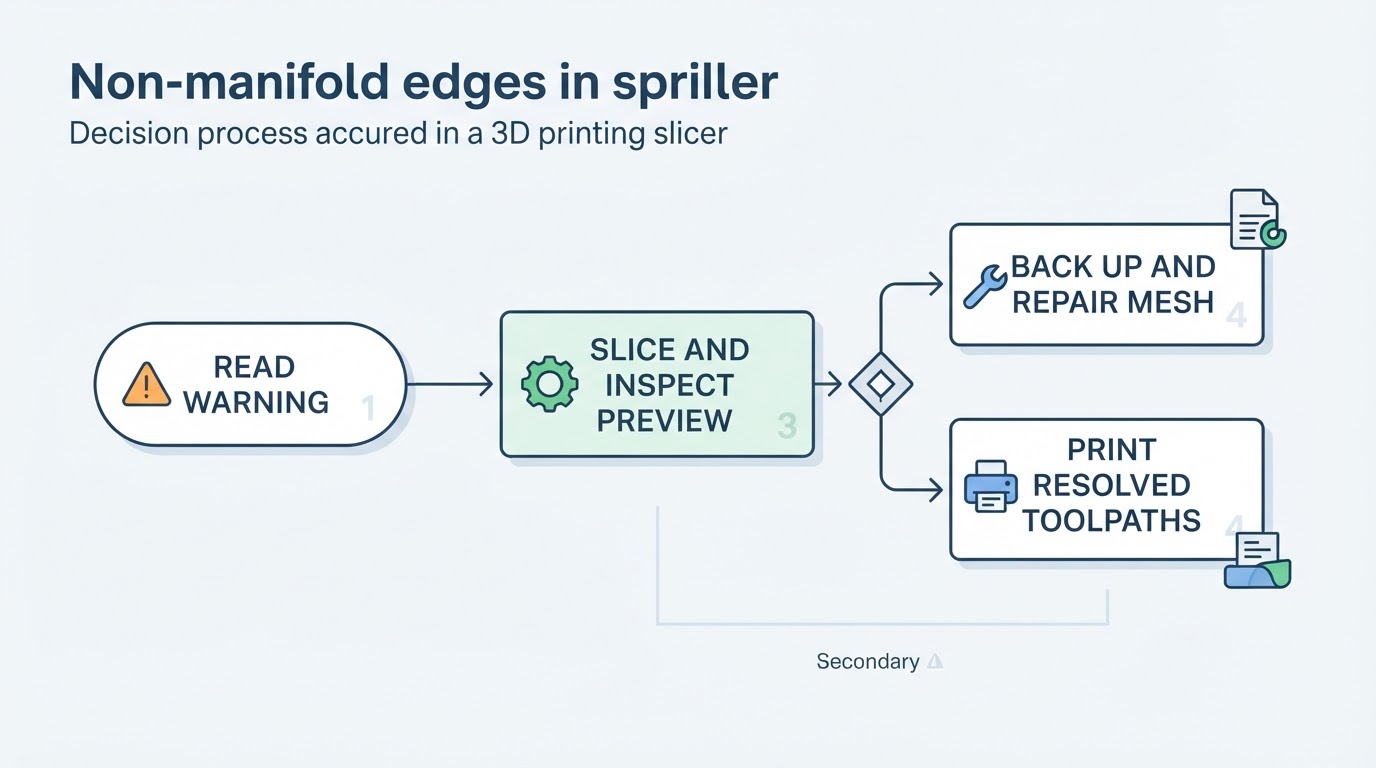
Back up the original file at this point, before any repair tool touches it. Keep the untouched STL or 3MF next to the repaired version and name it clearly, because repair routines rewrite geometry and a later comparison is the only reliable way to see what changed. If the file came from a download you cannot repeat, that backup is also your escape hatch if the repaired version prints worse.
Repair Routes By Operating System
Windows. Look for OrcaSlicer's Fix Model command in the object's context menu. It targets holes, non-manifold edges and other mesh errors. Run it, re-slice, and check that the preview still matches your intent. Keep the original file: repair changes the mesh.
macOS and Linux. The older wiki page still calls Fix Model Windows-only, but OrcaSlicer's 2.4.0 alpha release notes say the function was added for Linux and macOS using CGAL. Check your installed version and look for Fix Model in the object's context menu. If it is absent, update to a release that includes that change, repair in CAD and re-export, or use a dedicated mesh-repair tool. STEP may preserve better CAD geometry than a low-quality STL, but conversion is not itself a guaranteed fix for a broken source model.
Simplify Model is not a repair. The option in the Prepare view reduces polygon count through Detail Level or Decimate Ratio, and the wiki recommends turning on Show Wireframe to inspect the result. Aggressive simplification can lose detail, add ringing and create new problems, so treat it as a performance tool rather than a fix for mesh errors.
Why Calibration Models Can Trigger This Warning
If the warning appears on Orca Slicer's own calibration models, you may be looking at a different problem. Upstream issue #3349 reported that temperature-tower and maximum-flow calibration models could have non-manifold edges. The report predated newer repair options on macOS and Linux.
The later PR #11861 reworked calibration geometry and references that issue. Depending on your installed version and whether you opened an older saved project, you may still see a warning; check the release notes and regenerate the calibration before assuming the defect is in your own model.
Decision Table
What you see | What it usually means | First action |
|---|---|---|
Warning on a downloaded STL, and the preview shows missing walls or unclosed surfaces | The mesh has real open or overlapping geometry | Back up the file, then repair or re-export |
Warning on an Orca Slicer calibration model | May be inherited from calibration geometry or a saved project | Check your version and regenerate the test |
Warning, but the preview is complete and the shell closes | The slicer may have resolved the toolpaths | Inspect a small test print if appropriate; repair if the geometry or resulting part is wrong |
Warning after heavy Simplify Model use | Simplification changed the geometry | Revert to the backup, then simplify more gently |
Limitations To Keep In Mind
A successful Fix Model run is not a guarantee: the option repairs common mesh errors, and the wiki does not promise that every defect is caught. Repair can also shift fine features, so compare the repaired model against the backup before a long print. Version matters, because the calibration fix is recent enough that older builds and old project files still behave differently from a current install. And none of these routes replaces good CAD practice; when a file is badly broken, re-exporting clean geometry beats repairing it again and again.
FAQs
Can I ignore a non-manifold edges warning? Only after you check the preview. If the model slices with complete walls and closed surfaces, the warning did not stop the toolpaths. If material is missing, treat it as a real defect and repair before printing.
Why does an Orca Slicer calibration model show non-manifold edges? An upstream report tracked affected calibration geometry as #3349, and PR #11861 addressed it. Check your installed version and regenerate an old calibration project before diagnosing your own models.
For calibration-specific questions, see our Orca Slicer calibration order guide.
How do I repair non-manifold edges on macOS or Linux? Check your installed OrcaSlicer version. Release notes for 2.4.0 alpha added CGAL-based Fix Model support on those systems; older versions may lack it. If the command is unavailable or does not preserve the intended geometry, repair the source in CAD or a dedicated mesh tool, then re-slice and inspect the preview.