Start here: the blocker is rarely the broken part
When an exclusion that seemed to work appears to do nothing, the blocker volume is usually not the cause. Orca Slicer only consults blockers, painted exclusions and enforcers while it generates support for a region. If that region is not being supported, the blocker has nothing to remove and the slice looks identical with or without it.
Three things have to line up before a blocker can change a slice:
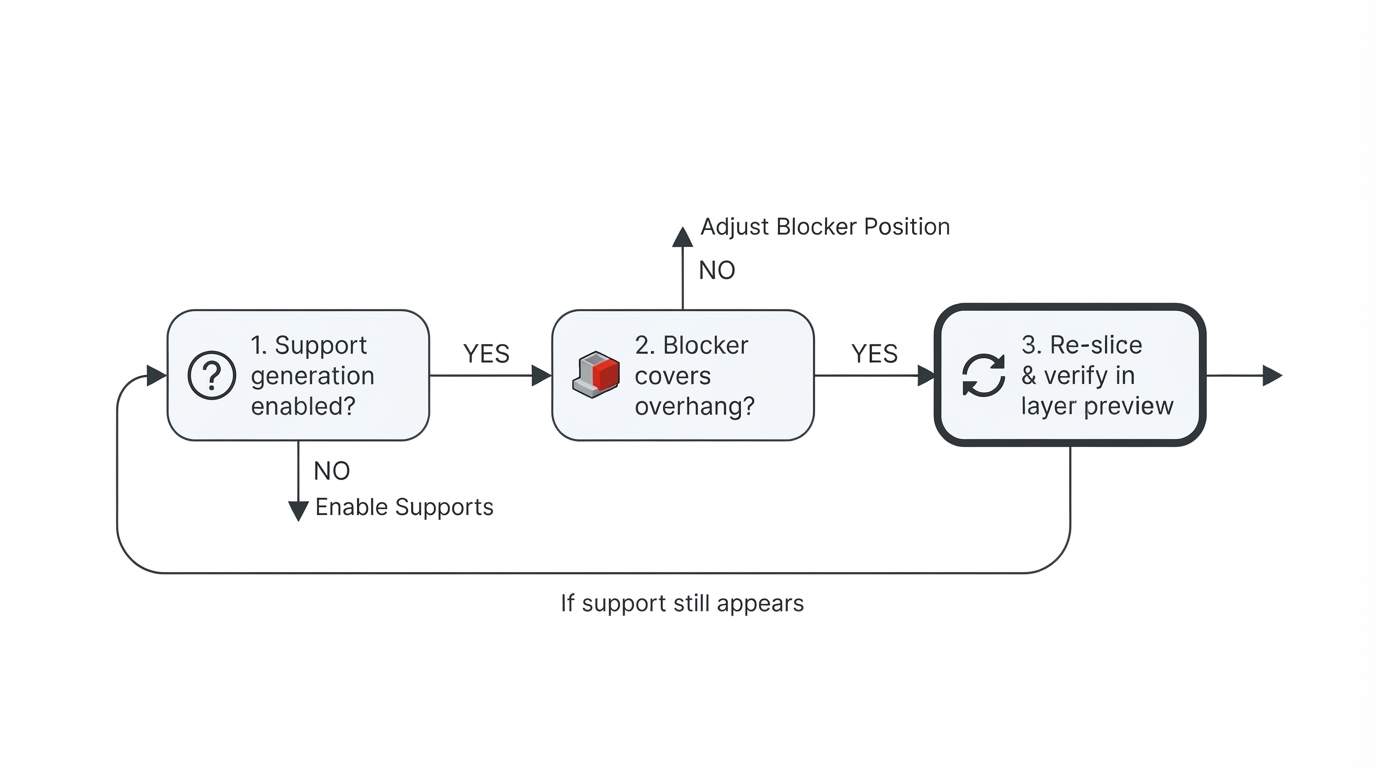
- Support generation must be on for the current process preset, otherwise there is no support to block.
- The excluded region must actually intersect the area the slicer would support. Check the sliced support footprint, not just the visible overhang.
- The result must be judged after a fresh slice, in the layer-by-layer Preview, not on the prepare viewport, which shows the model and painted marks rather than generated toolpaths.
The official OrcaSlicer support settings document the available support modes and controls, so you can check each one by name instead of guessing. Exact menu wording and option placement vary between OrcaSlicer versions; treat the labels below as version-dependent and confirm the parameter name in your own build.
Check the support type: auto versus manual
The wiki lists four support type options: normal(auto), tree(auto), normal(manual) and tree(manual). The distinction matters more than most people expect.
In the two auto modes, Orca Slicer generates support automatically from the model's overhangs, and manual placement overrides that automatic result. A blocker is meant to subtract supports from an otherwise automatic structure.
In the two manual modes, support generation is limited to what you place by hand in the prepare view. If the preset has been switched to a manual mode, automatic support stops being generated altogether, so a blocker can look ignored when the real change is that nothing was supporting the area to begin with.
The first real test is to compare slices. Disable the blocker and slice again. If the support geometry is identical both times, the region was never supported by the automatic generator; the fix lives in the support mode, the threshold angle or the overhang settings.
Check whether the blocker covers the support that is generated
The most common blocker failure is geometry, not logic: the volume or painted stroke simply does not cover the support being generated.
Two documented settings explain most of these cases:
Setting | What it does | Why the blocker looks ignored |
|---|---|---|
Normal support expansion | Expands or shrinks the horizontal span of normal support; positive values expand | Support creeps past the edge of a tight blocker footprint |
Support/object XY distance | Sets the XY separation between object and support | Changes whether a narrow blocker covers the support |
Both are documented under Support Advanced. If support survives only at the edges of the excluded area, expansion is the first suspect. Widen the blocked footprint by two or three millimetres past the boundary you actually care about, re-slice and compare. If the support disappears cleanly, the blocker was working and was simply undersized.
Then check for competing signals. A painted enforcer and a painted blocker over the same face fight each other, and the outcome depends on brush radius and stroke order. Clear the enforcer first, then paint the exclusion. The same care applies to volumes: confirm in the object list that the volume is typed as a support blocker rather than a normal part. This part of the workflow varies most across versions, so verify the volume type in your own build.
Two further settings can hide a blocker's effect:
- On build plate only restricts supports to the plate, so the generator may reroute or drop supports on its own.
- Don't support bridges suppresses support under bridge areas entirely.
With either one active, the slice can change for reasons that have nothing to do with the blocker.
Verify in Preview, not in Prepare
The prepare viewport does not show generated supports: it shows the model, the painted regions and the blocker volumes. A blocker can look perfectly placed there while Preview still shows support, because the last slice predates the change or the change affects a region the preview is not showing.
Use a short verification loop:
- Slice the plate.
- Switch to Preview and step through every layer where support previously appeared in the blocked area.
- Inspect remaining supports and confirm the interfaces you still need are intact.
- Move the layer slider from the first supported layer to the last.
A clean blocked region stays clean at every layer.
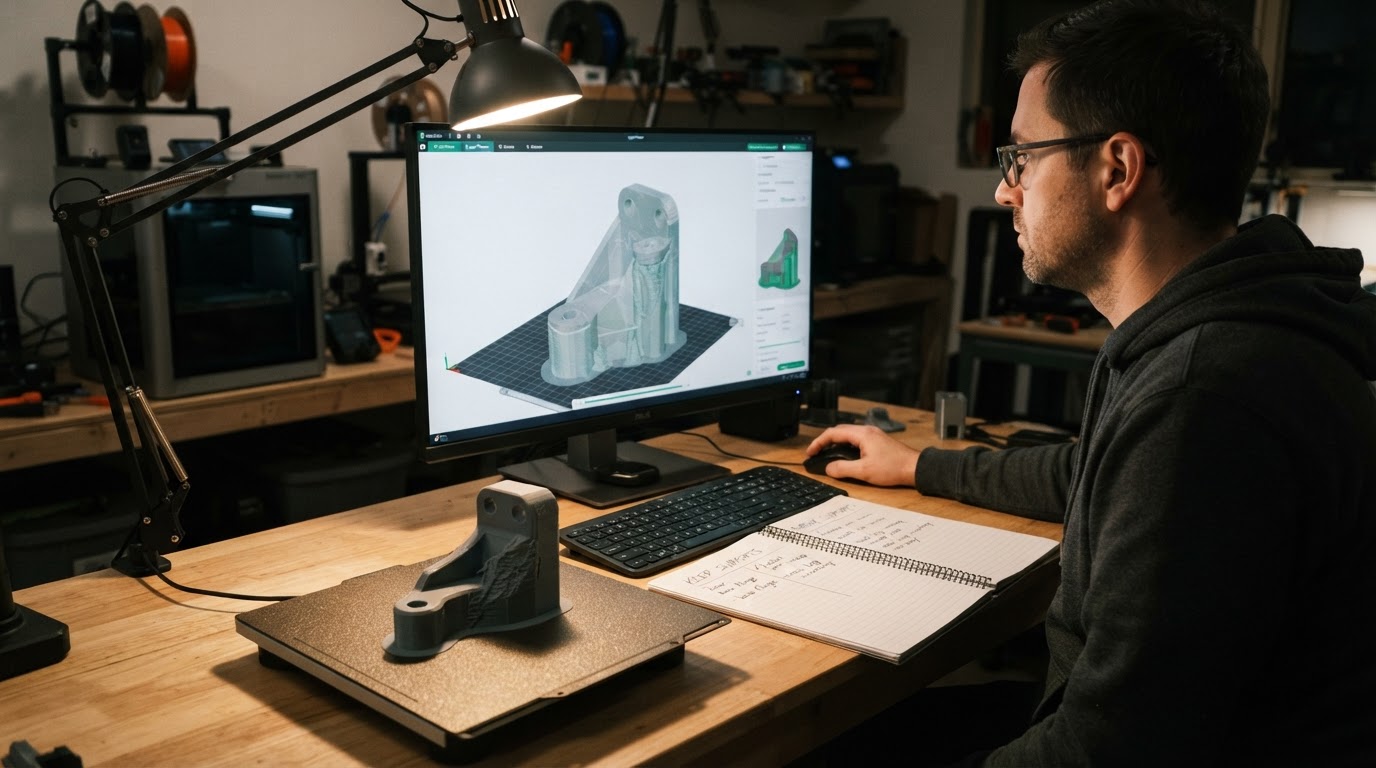
Completion standard: the new slice shows the excluded area clear at every relevant layer, while the support interfaces you still need remain present. If either condition fails, keep diagnosing instead of reprinting.
Limitations worth knowing
- A blocker changes support generation only; it cannot fix an overhang that is too steep, too hot or too fast.
- Tree supports can route a trunk around an excluded face. Blocking a contact area is not the same as blocking the branch, so inspect the whole structure.
- Blockers do not move or reorient the model. When geometry is the real problem, rotating the part does more than any exclusion.
- Control names and defaults are version-dependent. The parameter names cited here come from the current official wiki; confirm them against your installed release before changing a production profile.
FAQ
Why does the same blocker work on one model and get ignored on another?
Support is generated per region. Where it works, automatic support was being created exactly where the blocker sits. Elsewhere, the support may come from a different overhang, from expansion around the blocker, or from a manual placement the blocker does not override.
Does a support blocker remove supports that are already printed?
No. It changes the next slice only. Re-slice, confirm the change in Preview and print the new result.
Should I use a blocker or switch supports off?
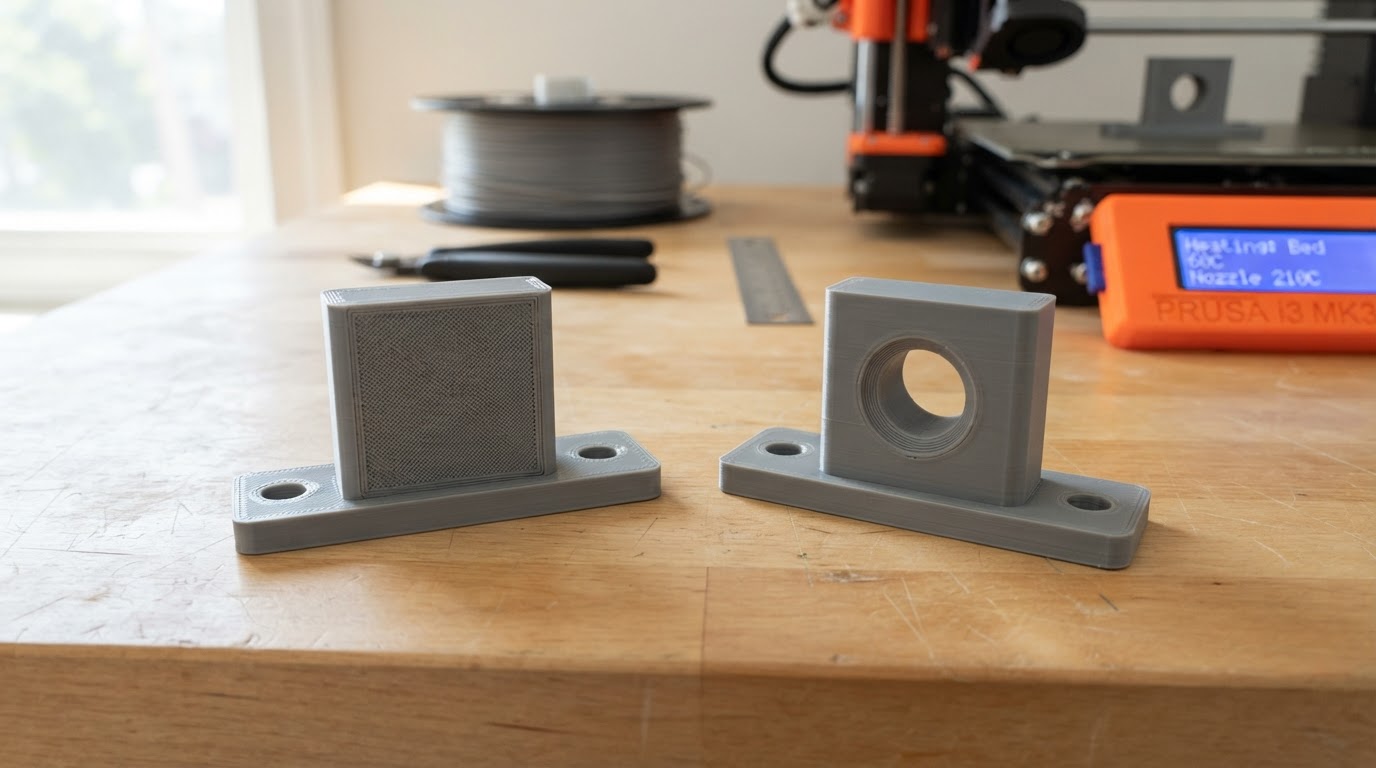
Use a blocker when the problem is local: one visible face, one threaded hole, one contact patch. When the whole part has more support than it needs, adjusting the support type, the threshold angle or the on-build-plate restriction is the cleaner fix.
For adding supports in the first place, use the site's manual-support walkthrough. This page is scoped to an exclusion that appears to be ignored after slicing.