Start at the OrcaSlicer GitHub repository. Its README links www.orcaslicer.com as the official website. This website, OrcaSlicerGuide, is an independent guide and does not host installers or represent the upstream project.
Verify the official OrcaSlicer repository
Read the full address before downloading: the owner and repository are both OrcaSlicer. A familiar logo, search ranking or page title does not establish who operates a page. Follow the links from the upstream README rather than assuming that a similar domain is official.
Your task | Where to go |
|---|---|
Confirm project identity | The upstream repository and its README |
Obtain a released build | The repository's Releases page |
Read settings documentation | The wiki linked by the project |
Report a reproducible bug | The upstream issue tracker |
Choose an OS-specific asset | The release notes and asset list for the selected tag |
Check the download destination
The upstream Releases page contains tagged releases and their attached files. Open the release record and read which operating systems and architectures its assets support. A source-code archive is not the same thing as a ready-to-run desktop installer.
The README checked on 16 October 2026 explicitly warns about look-alike sites and names the project's official website. Read that warning at its source, because addresses and distribution arrangements can change. A third-party guide should help you reach the project; its existence does not make its own downloads official.
A fork can be legitimate while still being a different build. If you deliberately choose one, identify its owner and changes. A project can also document another distribution channel, such as an application store: check that the channel is linked by the upstream project rather than rejecting it merely because it is hosted elsewhere.
Repository identity and release choice are separate checks
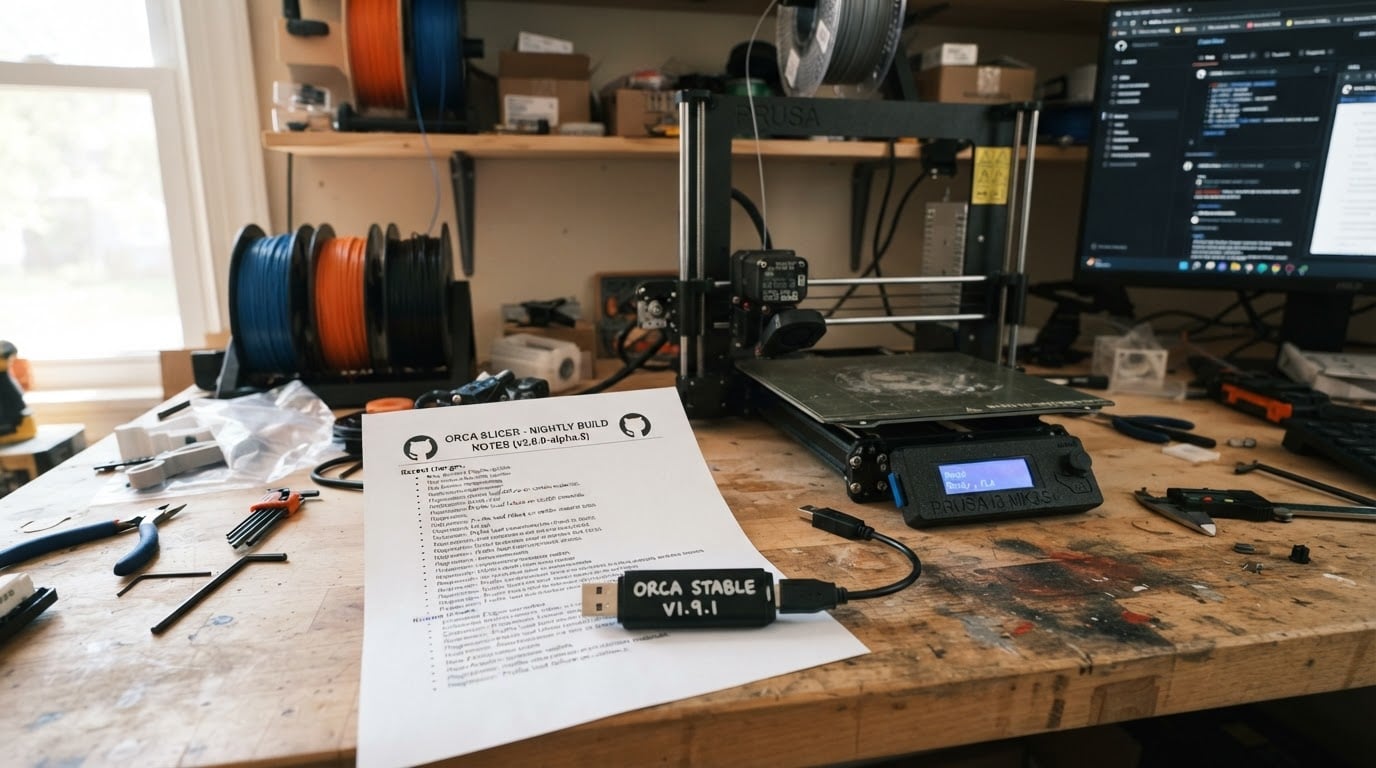
Finding the right project answers who publishes the software. Choosing a particular release answers which build you intend to run. Stable and prerelease builds have different purposes; the first item on the page can be a nightly build rather than the stable release.
Use our separate release-reading checklist for tags, assets, upgrade notes and a record of the file you chose. Linux users can continue to the Flatpak and AppImage installation guide. Keeping these tasks separate avoids turning a repository link page into a second installation tutorial.
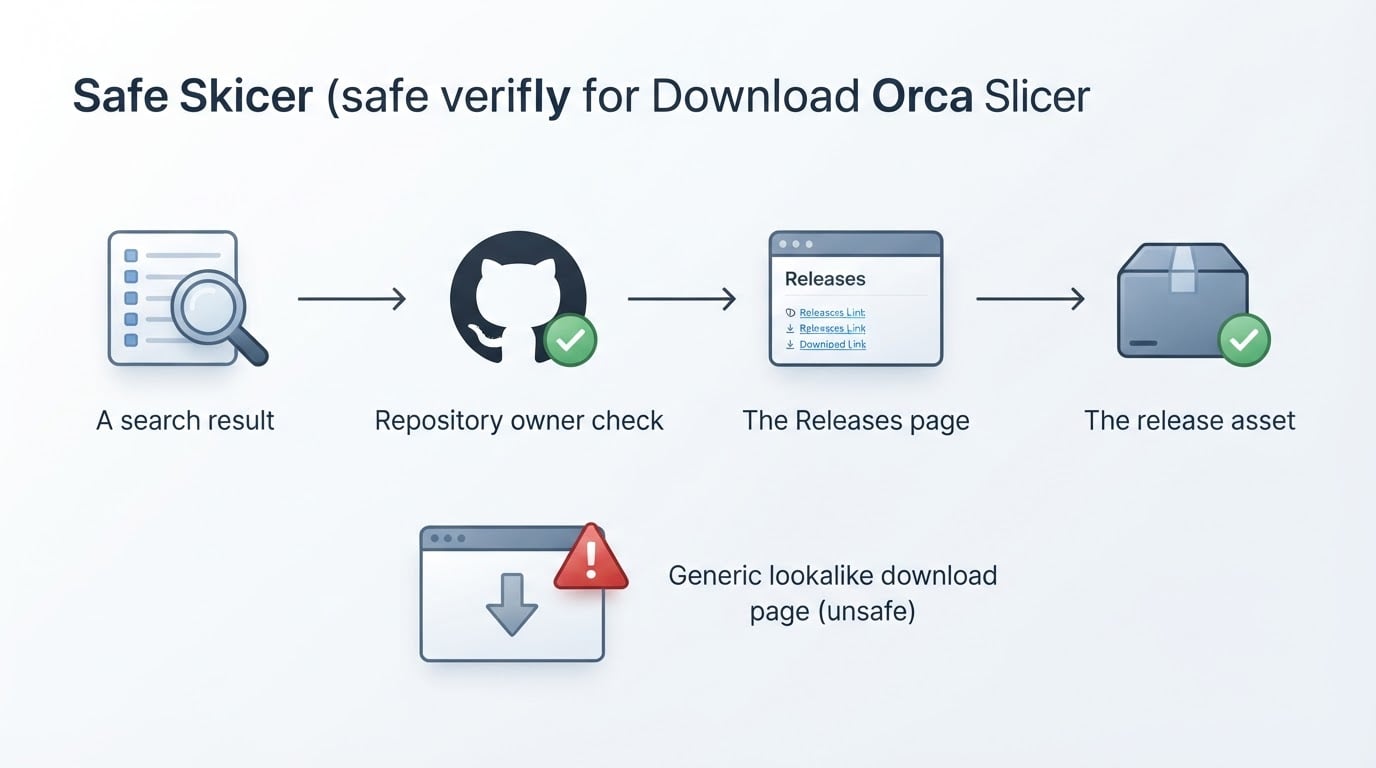
A short verification record
Write down the checks rather than relying on a remembered logo:
- Upstream repository address: ____
- Official website linked by its README: ____
- Selected release tag and stable/prerelease status: ____
- Operating system and architecture required: ____
- Asset name and distribution channel linked by the project: ____
- Check date: ____
If the project publishes checksums or signatures for the selected asset, follow its verification instructions. A value copied only from the same third-party download page does not provide an independent check. This checklist establishes provenance; it does not guarantee that any software file is free of defects.
Documentation and help
Use the documentation linked by the project for the installed version. Before filing an issue, search the tracker for the exact error and version. If you report a new problem, include reproduction steps, expected and actual behaviour, OS, application version and relevant printer/profile details. Remove private file paths, credentials and other personal information from logs before sharing them publicly.
For everyday use, bookmark the verified upstream repository. Recheck its current release notes when upgrading rather than following an old download link from a search result.