Orca Slicer's Linux builds come from the project itself: a Flatpak on Flathub and AppImage files attached to each GitHub release. This guide covers both routes, the scope that decides whether you need administrator rights, and the errors behind most failed first launches.
Key answers at a glance
Question | Short answer |
|---|---|
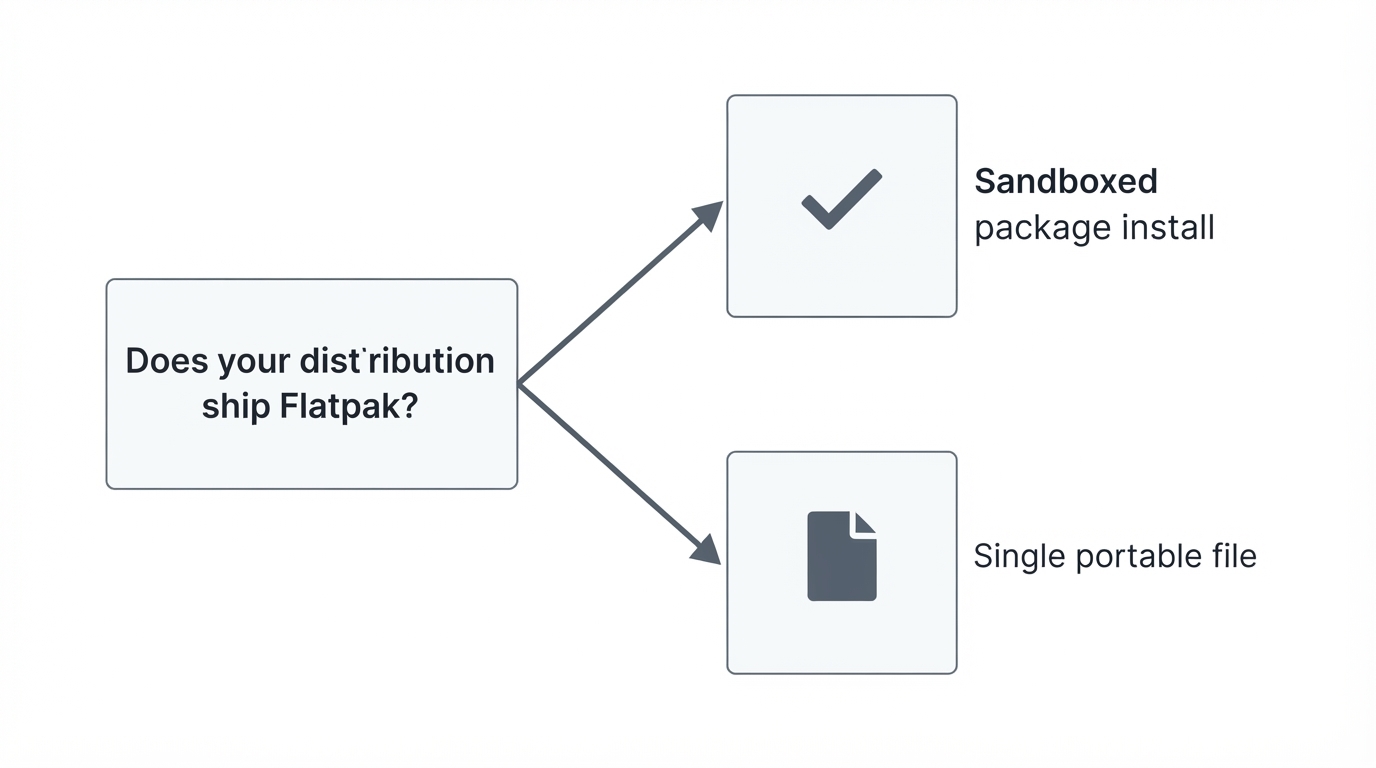
Which build should I choose? | The Flatpak from Flathub for managed installs, an AppImage for one portable file. |
Do I need root access? | A system-wide install may require administrator authorisation; --user installs for your account. |
What fails most often? | A missing FUSE 2 library for the AppImage, or a Flatpak remote in the wrong scope. |
Choose between the Flatpak and the AppImage
Flatpak is the better default for most desktop users, because your Flatpak tooling handles updates and the menu entry; the AppImage suits portable setups where you prefer not to change anything outside your home directory.
Both distribute OrcaSlicer, but packaging, versions and integration can differ. The release page offers Flatpak bundles and AppImages for x86_64 and aarch64, so there is no single universal download; the stable release checked on 16 October 2026 is v2.4.2 (7 July 2026). Recheck the release record when installing.
Install Flatpak for your user or the whole system
Flatpak commands run system-wide by default, and the --user option installs into your home directory instead, visible only to you. The official Flatpak documentation describes both scopes and notes that commands behave the same way either way.
The remote scope must match the install scope: a remote added in one is invisible in the other, so check both the configured remote and the selected scope when an install reports "not found".
System-wide, install the flatpak package from your distribution, then run flatpak remote-add --if-not-exists flathub https://dl.flathub.org/repo/flathub.flatpakrepo and flatpak install flathub com.orcaslicer.OrcaSlicer.
Per-user, add --user to both: flatpak remote-add --user --if-not-exists flathub https://dl.flathub.org/repo/flathub.flatpakrepo and flatpak install --user flathub com.orcaslicer.OrcaSlicer. That stays inside your home directory and needs no administrator authorisation; a system-wide install changes files outside it and normally asks for it.
The application ID is com.orcaslicer.OrcaSlicer, the identifier in the project's own Flathub link, and Flathub lists it for x86_64 and aarch64.
Keep the scope consistent: update a per-user install with flatpak update --user, a system-wide one with flatpak update, and launch a per-user install with flatpak run --user com.orcaslicer.OrcaSlicer or a system-wide one with flatpak run --system com.orcaslicer.OrcaSlicer.
Install Orca Slicer with the AppImage
The AppImage needs no installation: download the file, mark it executable, and run it. Check the selected release for its available architectures and distribution compatibility, so pick the file matching your architecture rather than assuming one download fits all.
Then run chmod +x your-file.AppImage and ./your-file.AppImage in a folder you control. Keep the file in place: If it fails, read the terminal error before changing packages or downloading another copy. Release channels: github-orca-slicer.
Dependencies and distribution notes
If the selected AppImage reports a missing FUSE library, follow the AppImage project documentation for your distribution. Flatpak needs its own stack and the application runtime.
The FUSE 2 package is not named the same way everywhere: Ubuntu, Debian and Mint have shipped it as libfuse2, Fedora and its derivatives as fuse-libs, and Arch and Manjaro as fuse2. Names shift between releases, so confirm the exact one in your distribution's documentation. FUSE 3 does not substitute for it: do not remove FUSE 3 or disable security features to work around a missing FUSE 2. If you cannot install packages, run the AppImage with --appimage-extract-and-run (see the AppImage documentation).
Immutable desktops such as Silverblue or Bazzite suit the Flatpak; both builds run under Wayland and X11, so test the other if rendering looks wrong.
First-run setup
A slicer needs a machine definition and a material profile before it can produce G-code. Confirm the printer model matching your hardware, the nozzle diameter and the filament you have loaded. If your exact printer is not listed, a nearby profile is a starting point rather than a safe default: machine envelopes, firmware behaviour and required hardware values differ within printer families, so compare it against your printer's specification and change only values you can measure. Calibration comes next, at orca-slicer-calibration.
Note the version you installed, for the day something misbehaves or you roll back.
Update Orca Slicer without breaking your setup
Update the Flatpak in the scope you installed it in, and replace the AppImage file when a new release appears. Stable is the build to run for printing, previous lets you fall back without hunting for an older file, and nightly is where new work lands first. Keep the installer file for your working build: if an update misbehaves, reinstalling it gets you printing again.
Verify the install worked
The install is complete when the application opens without errors and reports the version you downloaded: check that the version shown after launch, the launcher entry and a test slice match that build, and compare any published checksum before the first launch.
Troubleshooting the most common Linux install problems
Most early failures are missing FUSE 2 support, an unconfigured Flatpak remote or runtime, a file never marked executable, or a session mismatch.
- The AppImage does nothing: check the executable bit with
ls -land run it from a terminal so the error stays visible; if it mentions FUSE, install your FUSE 2 package or use --appimage-extract-and-run, not remove FUSE 3. - Flatpak says the application was not found: the remote is missing or exists in another scope. Run
flatpak remotes, which marks remotes as per-user or system-wide, then add it in the matching scope. - No menu entry: an AppImage creates none, so add a desktop file for it; if a Flatpak's entry is missing, log out and back in.
- It crashes, flickers or renders badly: try the other session type, check your GPU drivers, and for a sandboxed Flatpak confirm access to your model folders.
- An unknown-publisher warning is expected for a file your package manager did not install; verify the download against the official release page rather than disabling security features.
FAQ
- Is there an apt or dnf package? The project's own Linux builds are the Flatpak and the AppImage; third-party repackages exist, so check who produced one.
- Which version should I install? Check the current stable tag; v2.4.2 was listed as Latest when checked on 16 October 2026. Keep your own known-working build for rollback.
About this guide
This guide is published by an independent OrcaSlicer resource hub, not by the Orca Slicer project, and we do not host the installer files; download only from the project's official release channels.